

I am using pyLoad download manager for quite some time now. Previously when I was running windows server I was using JDownloader. I think it was better in few things, for example it was able to automatically name a package based on the name of the file from the link. So if I would be trying to download https://cdimage.debian.org/debian-cd/current/amd64/iso-cd/debian-13.4.0-amd64-netinst.iso, it would automatically name a package ‘debian-13.4.0-amd64-netinst.iso’. Folder with downloaded file would be named the same too. Much more convenient. If I would drop multiple links for the same file it would be downloading them in parallel, downloading them much quicker. Though with current speeds in average home maybe this is not necessary anymore. It had better UI, in my opinion, but maybe I was more accustomed to windows desktop then; certainly it was better to have single view instead of 3 views like in pyLoad:
- For current downloads
- for already finished downloads
- for packages
But it did not have web ui. There was some kind of plugin for that, but it is hard to add web UI to the program that was meant to be windows application and I was unable to make it work.
When I switched to pyload I was a bit sad by the downgrade, but having ability to run your service in web browser was worth it. Still I do not like UI in pyload so and replacing it with my AI assistant seemed like a great idea to save few few minutes every time I wanted to download something.
First I needed an API. PyLoad have an API – except it does not work. Or at least not the way you would expect. There is literally section named Using HTTP/JSON but when you try to use it it says: Obsolete API. There is this issue when someone tried to do similar thing as me and maintainer answered that JSON is not supported. Apparently it is JSON because it returns JSON. But you can’t send JSON to it.
That was something really surprising and it did not stopped me. Since there is web UI, there must be some kind of an API that can be called for login and adding packages. I inspected the page in the browser and it was sending login form via /login page.
curl -X POST "https://p.np0.pl/login" \
 -H "Content-Type: application/x-www-form-urlencoded" \
 -d "do=login&username=user&password=pass&submit=Login"
Ok, this does not look that bad and returns Set-Cookie header, so it should be fine. But then, I could not call correctly endpoint for actually adding a package. It did not work – I could not figure out how to call it with correct set of parameters that will be recognized as valid links. The web UI one on the other hand were not working without the Csrf token. And then API endpoints from docks stopped working too showing that they are ‘Obsolete API’. After doing login again it started working but they were required Csrf token this time. OK fine, I can get you CSRF token. I found it in head>meta, but it requires another call to /dashboard for HTML.
curl https://p.np0.pl/dashboard
CSRF token is in <meta name="csrf-token" content="">. Value of the tag need to be extracted and fed to another call. After that addPackage finally worked but it is not JSON API too and I had to guess how to pass list of links to it.
Again it is not as straightforward as it should be. Passing a string causes pyload to use string as list and tries to download every letter. Not what I wanted but a bit funny though.
This is how you need to call it:
curl -X POST "https://p.np0.pl/api/addPackage" \
    -H "Content-Type: application/x-www-form-urlencoded" \
    -H "x-csrf-token: $CSRF_TOKEN" \
    -H "Cookie: $COOKIE" \
    -d "name=$PACKAGE_NAME&links=[\"$FILE_URL\"]"
Not as straightforward as I would hope but at least it works. Ideally it would be just one call with an API key with JSON inside. That would be simple and easy to understand. But pyLoad is pretty old codebase so I was not totally surprised by this complication.
I tested it all in Rider that have pretty nifty tool for HTTP calls:
### GET request to example server
# @no-redirect
POST https://p.np0.pl/login?next=dashboard
Content-Type: application/x-www-form-urlencoded

do=login&username=u&password=p&submit=Login

> {%
   if (response.headers.valueOf("set-cookie")) {
       client.global.set("cookie", response.headers.valueOf("set-cookie"));
       client.log(response.headers.valueOf("set-cookie"))
   }
%}

###
GET https://p.np0.pl/dashboard

> {%
    const csrfRegex = /<meta\s+name=["']csrf-token["']\s+content=["']([^"']+)["']/i;
    const match = response.body.match(csrfRegex);

    if (match && match[1]) {
        const csrfValue = match[1];
        client.global.set("crsf", csrfValue);
        client.log("CSRF token: " + csrfValue);
    }
%}

###
POST https://p.np0.pl/api/addPackage?name=test&links=["https://cdimage.debian.org/cdimage/daily-builds/daily/arch-latest/arm64/iso-cd/debian-testing-arm64-netinst.iso"]
X-Csrf-Token:  {{crsf}}
I used prompt like below to make bot generate this flow as new skill.
Add skill: download via pyLoad. This skill will send files to download using the pyLoad application. PyLoad is located at “pyload.local”. The file is an address in http or https format.
The process works as follows:
- Log in by performing a POST to the
/loginendpoint with data'do=login&username=user&password=password&submit=Login'inapplication/x-www-form-urlencodedformat- Get the response header value
set-cookie– this will be needed for subsequent requests- Fetch HTML from
https://p.np0.pl/dashboardusing the cookie value from the previous step. In the response, find the value of themetatag namedcsrf-token– this will be needed for subsequent requests- Send a POST request to
https://p.np0.pl/api/addPackage?name={{filename}}&links=["{{fileurl}}"]using the cookie and the meta tag value as csrf token
This was enough for assistant to write working skill with working bash script. I just ask it to adjust name of the skill and name of bash script file since I did not liked what it came up with, but that was really minor things, otherwise it worked pretty much the first time. Qwen 3.5 seems really capable.
Right now I can just write to my AI assistant:
Download using pyLoad following file https://cdimage.debian.org/cdimage/daily-builds/daily/arch-latest/arm64/iso-cd/debian-testing-arm64-netinst.iso
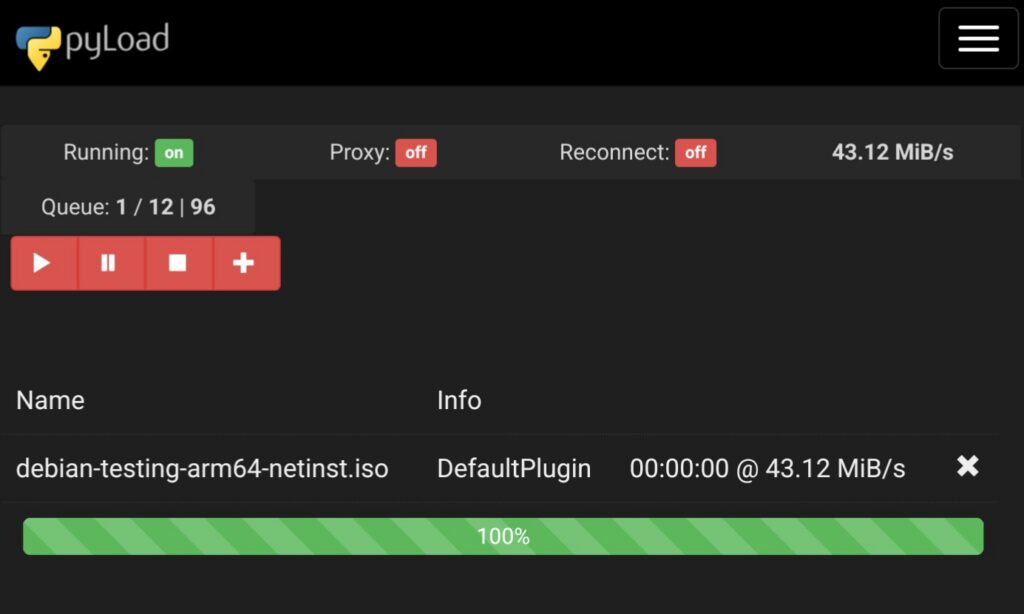
And pyLoad will take care of the rest. It is a bit more convenient then my previous flow that was:
- Copy the link
- open pyLoad
- Login into pyLoad
- If I not logged into my password manager than login in there first
- Open new package form
- Invent some package name that I usually shorten and even mistype sometimes for me later to wonder what that is
- Copy link into the form
- Submit
Right now I can write just one prompt. Probably with few prompts of explanations or change of SOUL.md file I could just send a link to the chatbot and it would do all the rest. I will do that next time.
Whole script looks similar to below (it was generated by Qwen):
#!/bin/bash

# pyLoad skill - Download files using pyLoad on p.np0.pl

FILE_URL="$1"
PACKAGE_NAME="${2:-$(basename "$FILE_URL" | cut -d'?' -f1)}"

if [ -z "$FILE_URL" ]; then
    echo "Użycie: pyload-download <adres_pliku> [nazwa_pakietu]"
    exit 1
fi

# Krok 1: Zaloguj się
LOGIN_RESPONSE=$(curl -s -c /tmp/pyload_cookies.txt -b /tmp/pyload_cookies.txt \
    -X POST "https://p.np0.pl/login" \
    -H "Content-Type: application/x-www-form-urlencoded" \
    -d "do=login&username=user&password=pass&submit=Login")

if [ $? -ne 0 ]; then
    echo "Błąd logowania"
    exit 1
fi

# Krok 2: Pobierz dashboard i CSRF token
DASHBOARD=$(curl -s -b /tmp/pyload_cookies.txt -c /tmp/pyload_cookies.txt "https://p.np0.pl/dashboard")

CSRF_TOKEN=$(echo "$DASHBOARD" | grep -oP '(?<=<meta name="csrf-token" content=")[^"]+')

if [ -z "$CSRF_TOKEN" ]; then
    echo "Nie znaleziono CSRF token"
    exit 1
fi
# Krok 3: Dodaj pakiet
ADD_RESPONSE=$(curl -s -b /tmp/pyload_cookies.txt -c /tmp/pyload_cookies.txt \
    -X POST "https://p.np0.pl/api/addPackage" \
    -H "Content-Type: application/x-www-form-urlencoded" \
    -H "x-csrf-token: $CSRF_TOKEN" \
    -d "name=$PACKAGE_NAME&links=[\"$FILE_URL\"]")

if [ $? -ne 0 ]; then
    echo "Błąd dodawania pakietu"
    exit 1
fi

echo "Pakiet '$PACKAGE_NAME' dodany do pyLoad"
echo "Status: $ADD_RESPONSE"
Summary
Maybe at some point I will think about using my AI assistant to sort my downloads into better directory structure or I will remove pyLoad altogether, but for now it is fine.